
Use an export definition file to customize how a device data .csv file is exported out of your system. The process requires two files: the source data file (.csv) and the export definition file (.edf), which is referenced by the Device Data CSV export command. CygNet provides a sample .edf file which you can use as a starting point to create your own customized export definition file and continue to edit its content over time, as needed.
The .edf file is an XML file used to define customized file exports for a Device Data CSV export command. Using the .edf file during the export process, you can determine the file definition type (raw device data, or normalized data in hourly or daily format, as referenced within the file), and define customized column header names by mapping each default column header name (the FMS value) to a new column header name (a user-provided value).
For device data CSV export files, an .edf file must be defined and the value for the File definition type parameter (required) specifies the file export definition within the file to reference.
See Export: Device Data CSV for more information about preparing and exporting .csv files that utilize an .edf file.
CygNet Measurement provides a sample EDF file, to be used for either daily or hourly periodic data. The sample is located in the CygNet\Services\FMS\CommandDefs\ExportSamples folder on your host server. The sample .edf file is located as shown in the following example.
Example
Note: Do not edit the sample file.
To create your working export definition file, do not edit the sample file. Copy the sample file and place the copy in the CygNet\Services\FMS\CommandDefs folder. Remove the term "Sample" from the file name and save the change. In order for the FMS service to find the file, it must be named CxFmsExportCsv.edf and it must be located in the CygNet\Services\FMS\CommandDefs folder in the directory, therefore the name and location of the EDF file must not be changed. Locate the working .edf file as shown in the following example.
Example
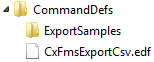
Note: Rename a copy of the sample EDF to CxFmsExportCsv.edf and place it in the CygNet\Services\FMS\CommandDefs directory. Then you can edit the file copy.
Various daily and hourly export commands reference different sections of the same .edf file. The section of the file used by each export command is specified by the value of the File definition type parameter (e.g. "Daily Periodic History Exports" or "Hourly Periodic History Exports") specified when configuring the export command.
The following general requirements apply to Export Definition Files.
Note: Either use the default ColumnMapping name values provided in the sample, or replaced them with user-provided values as desired. Once the column is mapped to the new header name, it will only appear with that name; the FMS default name will no longer be shown.
Note: Do not edit the data item token text. The FMS service can only recognize data item tokens by their expected names.
An .edf file contains descriptive elements and defining attributes including the file display formatting information, a list of tokens representing the data item values you are exporting and (optionally) the mappings for the text of the corresponding column header names.
Each supported data item token (e.g. "BeginDate", "NodeName", or "NodeDesc" in the example) returns the value of the FMS data item it represents, and the text entered as each corresponding ColumnMapping name value (e.g. "Date", "Meter", or "Well" in the example) appears as the column header name (when headers are used in the file).
You can define multiple export file types within one EDF file.
The structure of an .edf file for exporting hourly periodic history data is shown in the following partial example (one export file type shown).
|
<FileExportDefinitions>
<FileExport DisplayIdentifier="Hourly Periodic History Export" TimeSpan="Hourly" Type="Periodic" UnitSet="XXXX" NodeSortOrder="Name ascending" DataMode="Normalized"> <ColumnMapping name="Date" token="BeginDate" Format="YYYYMMDD"/> <ColumnMapping name="Meter" token="NodeName"/> <ColumnMapping name="Well" token="NodeDesc"/> <ColumnMapping name="MCF" token="Volume"/> <ColumnMapping name="MMBTU" token="Energy"/> ...
</FileExportDefinitions> |
The following .edf file elements and attributes can be used to custom define one or more export options for your file export.
Note: XML elements used in .edf files are case sensitive, unless noted otherwise.
The FileExportDefinitions element contains all types of individual export file definitions. It can contain multiple FileExport elements.
Each FileExport element defines a single type of export file definition, and has further attributes to define the specific export type. Possible attributes are as follows.
If the unit set is not defined in the command parameters in the MSS, it must be defined here. If the unit set is defined in the command parameters, defining a value here will override that parameter value.
When column header names are used (Use column header = Yes), the ColumnMapping attribute defines each column header name. The properties of this attribute are as follows.
In general, data item tokens supported for the export definition file used to define Device Data CSV exports are equivalent to the tokens supported for data tables by Gas Device Raw QTR reports or (Gas) Device QTR reports, but there are some cases where specific tokens are supported in one format and not the other. Also, whereas the QTR reports recognize valid token names enclosed in brackets [TokenName], EDF files recognize equivalent valid token names enclosed in quotation marks "TokenName".
Example
Valid token for QTR reports = [TokenName]
Valid token for EDF = "TokenName"
See Supported Tokens for Device Data CSV Exports for a list of valid data item tokens for exports.
A single export definition file can define multiple file export types (e.g. daily and hourly data, raw data, or different display formats).
If you will be performing more than one type of file export to accommodate different business purposes, the same .edf file accommodates the needed variations. Within the working export definition file (FileExportDefinitions element), copy an existing file export definition (FileExport element, e.g. Daily Periodic History Export) and edit the copy to create a separate new file export definition within the file (e.g. Hourly Periodic History Export).
Clearly define each file export type (its FileExport element) to reflect the appropriate type of data and customization (e.g. "NW Daily Periodic History Export" or "Section_3 Hourly Periodic History Export"), using the DisplayIdentifier attribute. Similarly define additional attributes to complete the file export definition. Each file export definition will then contain its own properly configured data-type-specific information within the EDF file. This new file export definition type (e.g. "NW Daily Periodic History Export") can be referenced in the corresponding Device Data CSV export command by the file definition type parameter. See Export: Device Data CSV for more information about command parameters.
This process can be repeated to customize the format and content of each additional device data CSV export file type you will be exporting.
Note: Plan to make and save any edits to your EDF file for a time when it is convenient to also restart your FMS service. Once you edit the export definition file, the export command referencing the .edf file will be unavailable until the file changes are saved and the FMS service is restarted. The FMS service restart must occur in order to load the new version of the EDF into your system, making it available for use by the file export command.
To change the file definition type, column header names, and other customized information contained in the .edf file, simply edit the referenced .edf file to contain the new information, save the changes, and then restart your FMS service.

|
|
|

